How to Use SubcueAI
SubcueAI is an AI interview assistant. It listens to the interviewer, transcribes each question and, when you ask, drafts an answer from your resume and the job you are interviewing for. This guide covers every way to run it — the desktop app for Mac and Windows, the iPhone, iPad and Android apps and the Chrome and Edge extension — plus how to prepare, practice with mock interviews and review how you did.
Pick how you will use it
Before your first interview
Set up your account, resume and job
SubcueAI writes answers from your resume and the job you are interviewing for, so add both first. Everything here carries over to every app you sign in to.
Create your account
Sign up at subcue.ai, or from any SubcueAI app, with Google, Apple or email. Email sign-ups confirm with a 6-digit code. The free Starter plan includes 50 credits every 30 days.
Add your resume
Build one in the free Resume Builder or upload a PDF on subcue.ai. The desktop app's RESUME tab also takes Word, text and image files; AI parsing of an upload there uses 2 credits. The resume marked Active is the one SubcueAI uses.
Add the job description
Paste the job title, the company (optional) and the full listing. The active job description tailors every answer to the role. Mock interviews and the browser extension need both an active resume and an active job description.
Save prepared answers (optional)
For questions you want answered your way, such as "Tell me about yourself", save up to 20 prepared answers on subcue.ai, or let AI draft one from your resume. When a matching question comes up, SubcueAI gives your version, translated if the interview is in another language.
Choose languages and answer length
Set the interviewer's language (or leave it on Auto Detect), the language you want answers in, and the answer length: Concise, Standard or Detailed. They live in the desktop app's SETTINGS tab, in Settings in the phone apps and in the extension's side panel.
Tip Paste the whole job listing, including requirements and responsibilities, not just the title. The more the AI knows about the role, the more specific the answers.
Desktop app · Mac & Windows
Get answers in a live interview on your computer
The desktop app floats on top of your meeting. It hears the interviewer through your computer audio, from Zoom, Google Meet, Teams or any other app, and your own voice through the microphone. No bot joins the call.
Install
Sign in at subcue.ai and download the app. On a Mac, open the DMG and drag SubcueAI to Applications (macOS 14 or later, Apple Silicon or Intel). On Windows, run the installer (Windows 10 version 19041 or later, 64-bit).
Allow audio access
On a Mac, click Continue on the welcome screen and allow Screen Recording, which macOS requires for capturing computer audio (SubcueAI does not record your screen), then Microphone. On Windows, only the microphone needs permission.
Sign in
The sign-in page opens in your browser (email, Google or Apple) and brings you back to the app when you are done. On Windows you can also sign in with email inside the app.
Start the session
Join your call, then click Start on the SESSION tab. The status changes to Recording live: the blue meter shows the call audio and the orange one your microphone. SubcueAI uses your active resume and job description.
Get an answer
When the interviewer finishes a question, press your trigger key (Right Shift on Windows, Right Option on Mac) or click Generate. The answer streams into the AI Answer card, and ‹ › pages back through earlier ones. To answer an earlier question instead, select it with ↑ ↓, or click it on Windows.
End the session
Click End. The transcript is saved to RECORDS, where your analysis is waiting.
Tip Change the trigger key in SETTINGS → SHORTCUTS → Change Key. Pick a key you will not press by accident; typing keys such as Space, Enter and the arrow keys cannot be used.
Note On Windows, closing the panel hides it in the system tray and a running session keeps going. On a Mac, ✕ ends the session; reopen the panel from the menu bar.
Tip Test before a real interview: start a session while a video plays and check that the blue meter moves.
iPhone, iPad & Android
Keep your phone beside the call with Listen mode
Phones do not let any app hear a call running on the same phone, so the phone apps work as a second device: the interview plays on your computer speaker, and the phone next to it listens, transcribes and drafts answers.
Install and sign in
Get SubcueAI for iPhone and iPad from the App Store (iOS or iPadOS 16.1 or later), or for Android from Google Play (Android 10 or later). Sign in with Apple, Google or email; resumes and job descriptions are under More.


Set up the call
Join the interview on your computer (Zoom, Google Meet, Teams) with the speaker on, not headphones. Put the phone within arm's reach, microphone toward the speaker.
Start listening
Open the Listen tab, switch on the confirmation that you will let the interviewer know you are using a live captioning and AI assistance tool, and tap Start Listening. Both voices are transcribed.
Tap Generate after a question
Right after a question, tap Generate for an answer. Tap an earlier line to answer that one instead, and page through answers with ‹ ›. On Android, the session keeps running with the screen locked.
End the session
Tap End when the interview is over. The session is saved to your records.
Tip Nothing transcribed after a few seconds? Turn up the computer's speaker and move the phone closer to it.
Can you walk me through your experience with distributed systems?
What's your approach to debugging a production performance issue?
I follow a systematic approach: first, I check monitoring dashboards to identify the bottleneck — whether it's CPU, memory, I/O, or network. Then I correlate with recent deployments.
Chrome & Edge
Get answers for interviews in a browser tab
If your interview runs in the browser, in Google Meet or in Zoom and Teams on the web, the extension listens to that tab and suggests answers in a side panel. Only the tab audio is captured, never your microphone.
Install
Add SubcueAI from the Chrome Web Store (Chrome 116 or later) or Microsoft Edge Add-ons, then pin it to the toolbar. The Firefox add-on offers mock interview practice only.
Sign in
Click the SubcueAI icon and choose Sign in to SubcueAI.
Start live assist
Open your interview tab and click the SubcueAI icon on that tab. Choose Live interview, check the interviewer and answer languages, and click Start live assist.
Generate answers
After each question, click Generate or press Ctrl+Shift+1 (⌘⇧1 on Mac); change the shortcut at chrome://extensions/shortcuts. Page through answers with ← →.
Stop
Click Stop when the interview ends. Your transcript and analysis are waiting on subcue.ai.

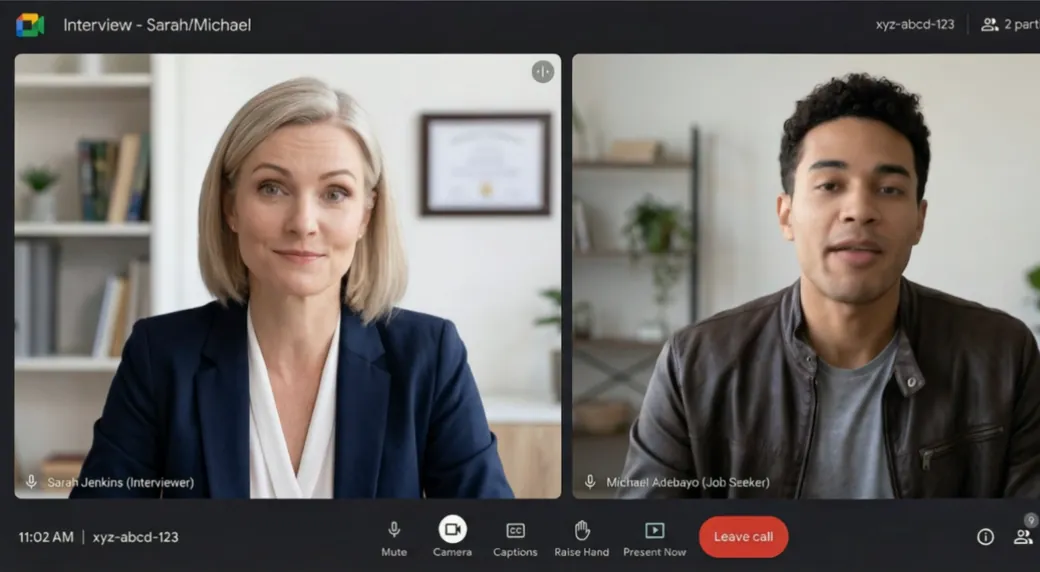
Practice
Rehearse with an AI mock interviewer
A mock interview asks questions built from your resume and the job description, out loud, and follows up on what you say. Every app can run one, and the analysis afterwards works the same as for a real interview.
On subcue.ai
Open Mock Interview in your dashboard, choose the resume, the target job and the language, and start. Answer by voice or by typing, then click Next question.
In the desktop app
Turn on MOCK on the SESSION tab before you click Start. Answer out loud, then press your trigger key or click Next for the next question.
On your phone
Open the Mock tab and tap Start Mock Interview. Each question is spoken; answer, tap Next question to move on and End when you are done.
In the browser extension
Choose Mock interview in the extension. It opens a tab where you answer by voice or by typing.
Note Each mock question uses credits. If you turn your camera on, the video stays on your device.
After the interview
Review the transcript and analysis
Every real and mock session is saved: in the desktop app's RECORDS tab, in Interview Records in the phone apps and in your subcue.ai dashboard.
Read the transcript
See what the interviewer asked and what you said, and copy or export it.
Open the analysis
The analysis scores the interview and lists your strengths, what to improve and concrete suggestions. It is generated the first time you open it; opening it again is free.
Plan the next one
Turn the suggestions into prepared answers, and run a mock interview on your weak spots.
What uses credits
SubcueAI runs on credits. Starter includes 50 credits every 30 days, Pro 2,000 a month and Premium 8,000 a month, and top-up packs never expire. These are the current rates:
| Action | Starter | Pro | Premium |
|---|---|---|---|
| AI answerper call | 2 | 2 | 2 |
| Live transcription (STT)per minute | 2 | 2 | 2 |
| Session analysisper call | 2 | 2 | 2 |
| Mock questionper question | 2 | 2 | 2 |
| Resume uploadper upload | 5 | 5 | 5 |
| Resume AI optimizeper call | 5 | 5 | 5 |
Tips for a good session
- Add your resume and the job description before anything else. Without them, answers are generic.
- Save prepared answers for the questions you know are coming, so SubcueAI gives your version.
- Keep the panel near your camera so glancing at it looks natural.
- Use the answer for its key points and structure, then say it in your own words. Reading word for word sounds scripted.
- Run a short test session before every real interview to check that the interviewer's audio comes through.
- Use SubcueAI only where outside help is allowed. If an interviewer asks you not to use AI assistance, don't.
Frequently asked questions
Which setup should I use?
If you take the call on your computer, use the desktop app: it hears the interviewer through the computer audio and floats over the meeting. If you would rather glance at a phone, take the call on your computer and run Listen mode on the phone beside it. If the interview runs in a browser tab, the Chrome or Edge extension works without installing an app.
Why does the Mac app ask for Screen Recording?
macOS only lets apps capture computer audio through the Screen Recording permission. SubcueAI uses it to hear the interviewer; it does not record your screen. On Windows, computer audio needs no permission.
Can I use the phone app for a call on the same phone?
No. iOS and Android keep call audio from Zoom, Google Meet, Teams, FaceTime and WhatsApp away from other apps. Take the call on a computer or another phone with the speaker on, and use Listen mode on the phone next to it.
Does a bot join my meeting?
No. SubcueAI never joins the call and nothing is added to the meeting page. The desktop app captures audio on your computer, the extension reads only the tab you start it on, and the phone app listens through its own microphone.
Which languages are supported?
The apps and this site are available in 27 languages. Set the interviewer's language, or let SubcueAI detect it, and choose a separate language for answers if you want them in another language.
What does it cost?
The Starter plan is free and includes 50 credits every 30 days. Pro and Premium add more monthly credits, and top-up packs never expire. Each AI answer, mock question, analysis and minute of transcription uses credits; the credits page lists the current rates.
Is using SubcueAI in a real interview allowed?
That depends on the interview. SubcueAI is built for preparation and for real-time support where it is permitted. You are responsible for following the employer's rules and any consent laws; if you are asked not to use AI assistance, don't.