Edge Extension
AI interview answers,
right in your browser
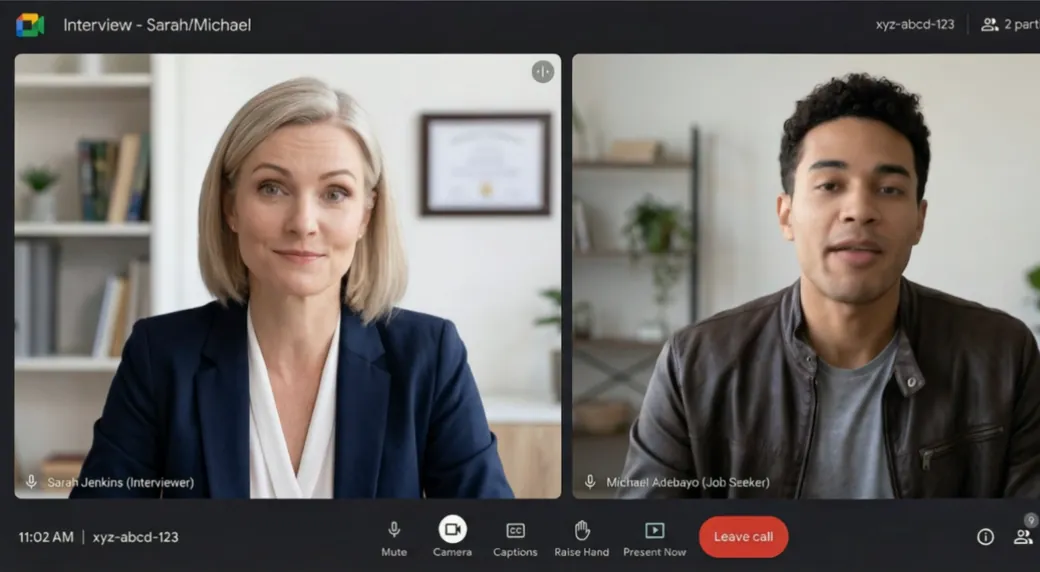
The SubcueAI - AI Interview Assistant works inside your Edge tab — real-time answer suggestions during live interviews on Google Meet, Zoom or Microsoft Teams, plus realistic mock practice built from your resume.
Free to start · Works with Google Meet, Zoom & Microsoft Teams on the web

How it works
From install to answers in four steps
Install & sign in
Add SubcueAI to Edge and sign in with your free account — new accounts include free credits.
Open your interview tab
Join your interview in a browser tab (Google Meet, or Zoom/Teams on the web), open the side panel, and press Start.
Pick your languages
Choose the interviewer’s spoken language and the language you want answers in — set them independently.
Get answers or practice
In a real interview, press Generate for a suggested answer. Before the big day, run a mock interview generated from your resume.
What you get
Two ways to prepare and perform
Live answer suggestions
SubcueAI transcribes the interviewer from the tab’s audio in real time and — on your command — streams a tailored answer you can put into your own words.
Mock interview practice
The AI plays the interviewer: personalized questions from your resume and target job, spoken out loud, with follow-ups based on what you actually said.
Rides beside your call
Answers stream in Edge’s side panel next to your meeting tab — page through earlier answers, resize the split, and trigger with a keyboard shortcut.
Tab audio only
Live assist listens to the interviewer through the tab’s audio — never your microphone, never other tabs, never your desktop. Capture starts only when you press Start.
27 languages
27 interview languages, with the interface localized in 27 languages too. Set the interviewer’s spoken language and your answer language separately.
Free to start
Create a free account with free credits, add your resume and target job at subcue.ai, and start. Questions and answers use credits; live transcription is billed by the minute.
FAQ
Questions about the extension
Does it capture my microphone?
No. In live assist, SubcueAI captures only the audio of the browser tab you select — the interviewer’s voice — never your microphone, and never other tabs or your desktop. In mock practice your microphone is used only when you choose to answer by voice.
Which interviews does it work with?
Any interview that plays through a browser tab — Google Meet, Zoom on the web, Microsoft Teams on the web, and similar. For an interview in a native desktop meeting app, use the SubcueAI desktop app instead.
Is it available on Google Chrome too?
Yes. The same SubcueAI extension is available for both Microsoft Edge and Google Chrome, and it works in other Chromium-based browsers. Your account, resume and credits are shared across all of them.
How much does it cost?
It’s free to start — new accounts include free credits. Generating questions and answers uses account credits, and live transcription is billed by the minute. See the credits page for live rates and the pricing page for plans and credit top-ups.
Extension or desktop app — which should I use?
Use the browser extension for interviews that happen in a browser tab and for quick mock practice. Use the desktop app for macOS and Windows when your interview runs in a native meeting app, or when you want a discreet, system-wide assistant that runs entirely outside the browser.
What do I need to get started?
A free SubcueAI account. Add your resume and target job at subcue.ai — the free resume builder powers the personalized mock questions — then add the extension to Edge and start.
Add SubcueAI to Microsoft Edge
Live answers when it counts, and mock practice to get there. Free to start.
Add to Edge