Where should you position the AI interview assistant overlay?
By Aaron Cao · Updated
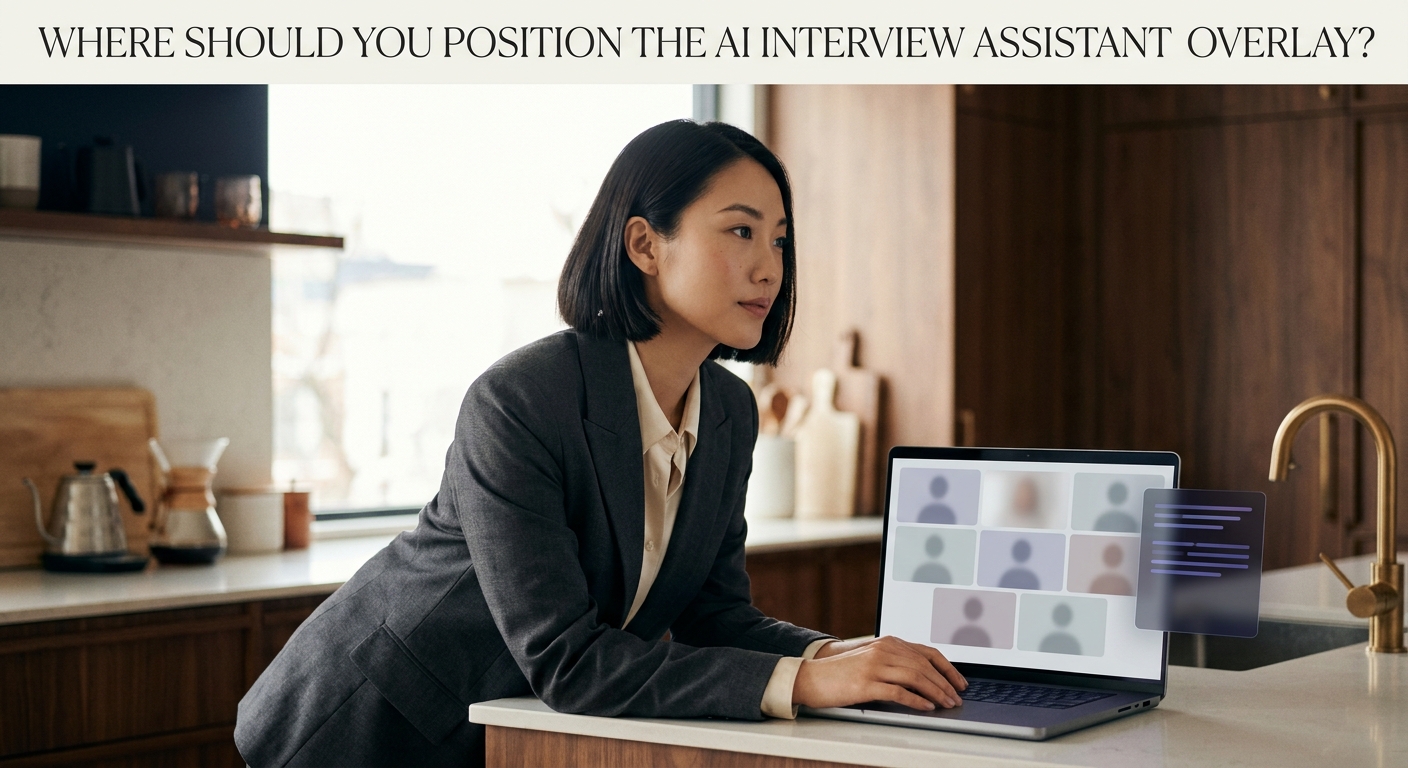
Place the overlay directly under or beside your webcam, on the same display as the interviewer's video. That way your eyes stay near the camera when you glance at suggestions, instead of drifting off to a second monitor or down to the dock.
Why overlay position matters more than people think
You already know the worry: you glance at a hint, your eyes visibly track sideways, and suddenly the interviewer is looking at someone who looks like they're reading. This section explains where to put the overlay so glances stay subtle, and gives you a simple rule to apply in under a minute.
Webcams capture a narrow cone of your face. Interviewers don't see your screen — they see your eyes. The further your overlay sits from your webcam, the larger the eye movement when you check it, and the more it reads as "looking away." Position is essentially an eye-tracking problem: minimize the angle between the camera lens and the text you're glancing at.
SubcueAI runs as a native desktop app with a local floating overlay, so you control where it sits — it isn't pinned inside the meeting window. For a walkthrough of first-time setup, see the /tutorial page.
The practical rule: anchor near the webcam
The single best position is directly below your webcam, on the same display as the interviewer's video. On most laptops the webcam sits at the top center of the screen, so a thin overlay near the top of that display keeps your eyes within a small range of the lens.
- Built-in laptop webcam: dock the overlay near the top of the same screen, centered or slightly offset from the interviewer's video tile.
- External webcam on top of a monitor: place the overlay just under the webcam, on that same monitor.
- Dual monitors: keep both the interviewer's window and the overlay on the monitor your webcam sits on. Don't let the overlay drift to the second screen — head turns are obvious on camera.
Aaron Cao, founder of SubcueAI, designed the overlay to be a small, movable, always-on-top window for exactly this reason: so you can tuck it under your camera instead of being forced to alt-tab or look at a second display. Resize it narrow enough that it doesn't overlap the interviewer's face — you want peripheral vision, not a wall of text.
Honest limits: when position doesn't save you
Placement helps with natural-looking glances. It does not make an overlay invisible in situations where the screen itself is visible to someone else. Be realistic about these cases:
- Screen sharing: if you share your screen, the overlay is shared too. Don't run it during live coding screen-shares.
- Local screen recording or proctoring software: anything that records or streams your display will capture the overlay regardless of where you put it.
- Company-managed devices: a work laptop with managed endpoint software is not a safe environment for any third-party assistant.
- Very small screens: on a 13" laptop, even a well-placed overlay forces tighter trade-offs between readability and camera proximity.
For a fuller breakdown of what interviewers can and can't see, the /answers/topic/detectability topic page collects related answers.
A 60-second dry run before the interview
Imagine a backend engineer prepping for an L5 system-design round on Zoom. Ten minutes before the call, they open a test meeting with themselves on a phone, position the overlay just under the laptop webcam, and watch the phone's video feed while glancing at the overlay. The glance is barely visible — small confirmation, no head turn. That's the bar.
Do the same thing yourself:
- Start a test meeting (Zoom, Google Meet, or Microsoft Teams) and join from a second device so you can see what the interviewer sees.
- Drag the overlay to sit just below your webcam, on the same monitor as the meeting window.
- Read a few lines from the overlay while looking at the camera. If your eyes visibly drop or shift sideways, move the overlay closer to the lens or shrink its width.
- Check that the overlay doesn't cover the interviewer's video tile — you still want to read their face.
If you're still choosing between tools or want platform-specific notes, the /best-ai-interview-assistant guide covers trade-offs in more depth.
FAQ
Should the overlay be on my main monitor or a second monitor?
Will the interviewer see the overlay through Zoom, Google Meet, or Teams?
How big should I make the overlay?
What if my webcam is at the bottom of the screen (some external setups)?
Can I move the overlay during the interview?
Related questions
- What is SubcueAI?
- How do I practice for interviews with an AI interview assistant?
- Does SubcueAI have a Chrome extension?
- Is there a free AI interview assistant that works with Google Meet?
- Is there a mobile AI interview assistant, or do you need a desktop?
- How do I set up an AI interview assistant on macOS?